Sometimes the icons in the MillBox workflow panel do not appear and you only see a blank background. This is usually a Windows graphics assignment issue. Set MillBox to use the high-performance GPU and the icons return.
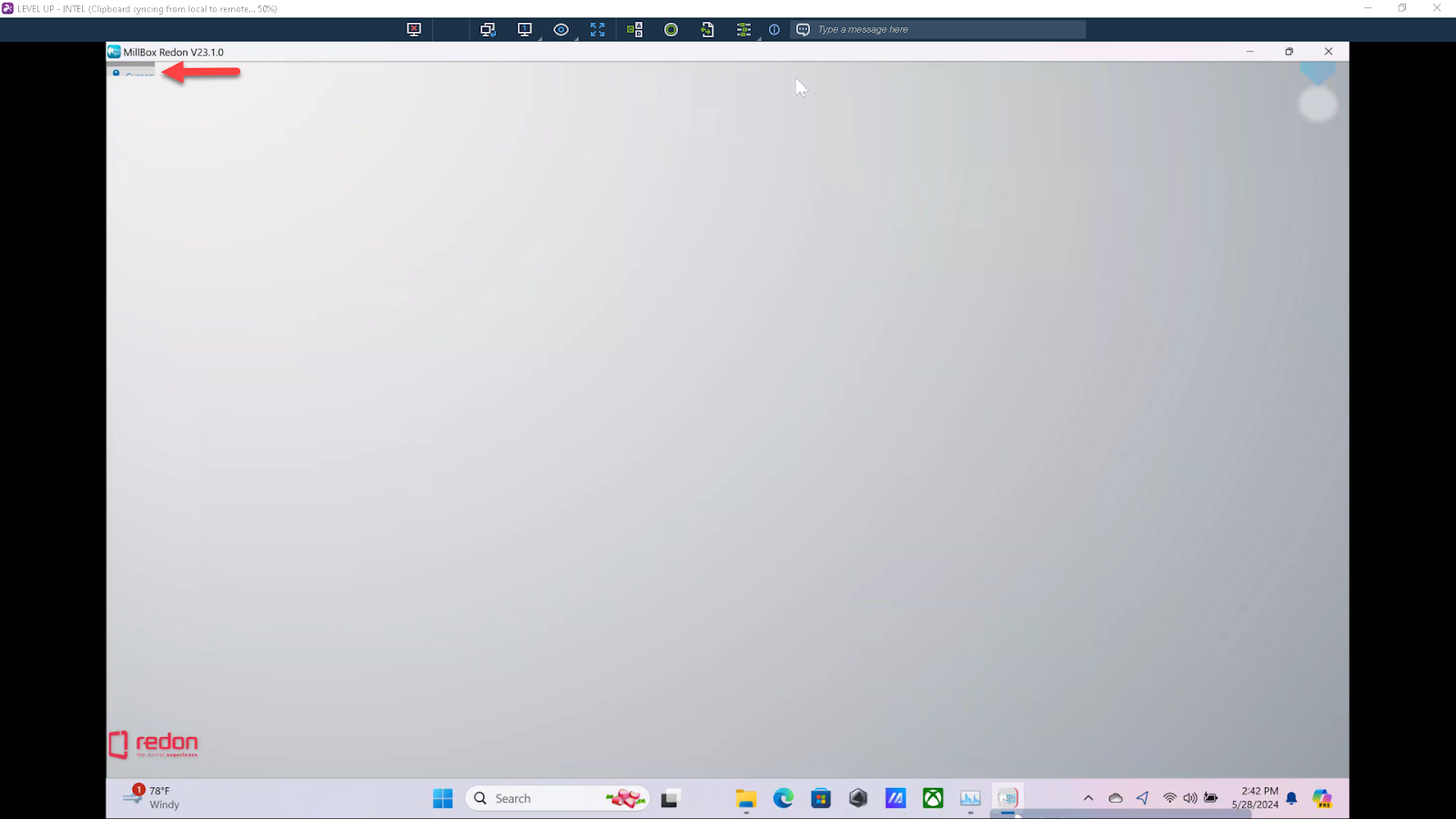
Figure 1. MillBox open with a blank toolbar where icons should be.
Fix: assign MillBox to the high-performance GPU
Find MillBox.exe
Open File Explorer and go to your MillBox install folder. Select MillBox.exe.
Typical path example:C:\MillBox_<Edition or Year>\millbox\MillBox.exe
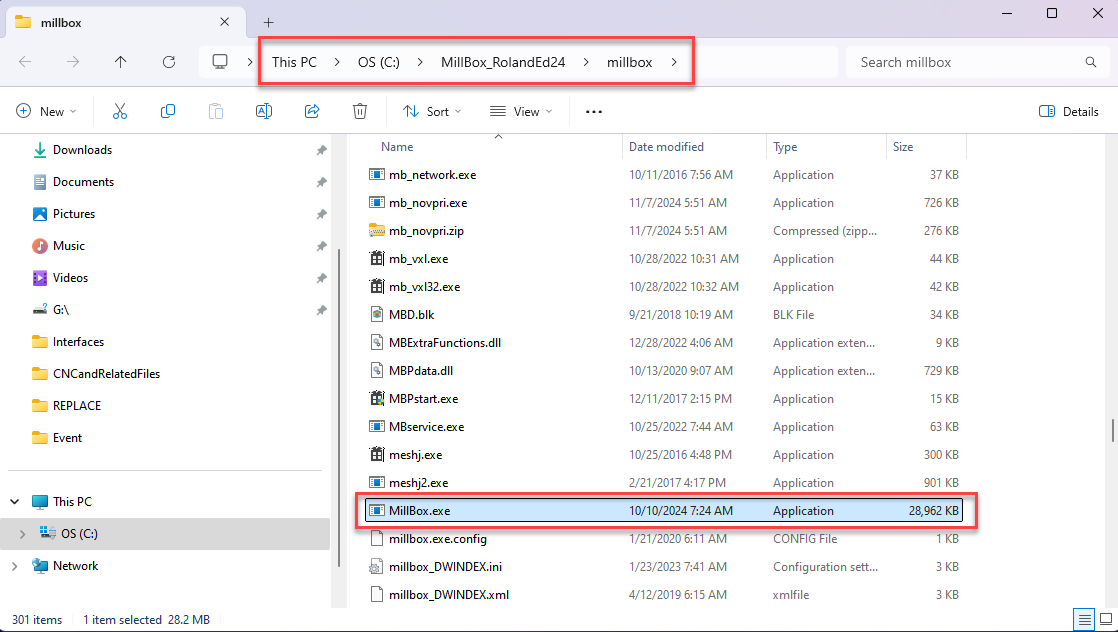
Figure 2. MillBox.exe highlighted in the install folder.
2. Add MillBox.exe to Graphics settings
Windows Settings → System → Display → Graphics → Browse → select MillBox.exe → Add → click Options.
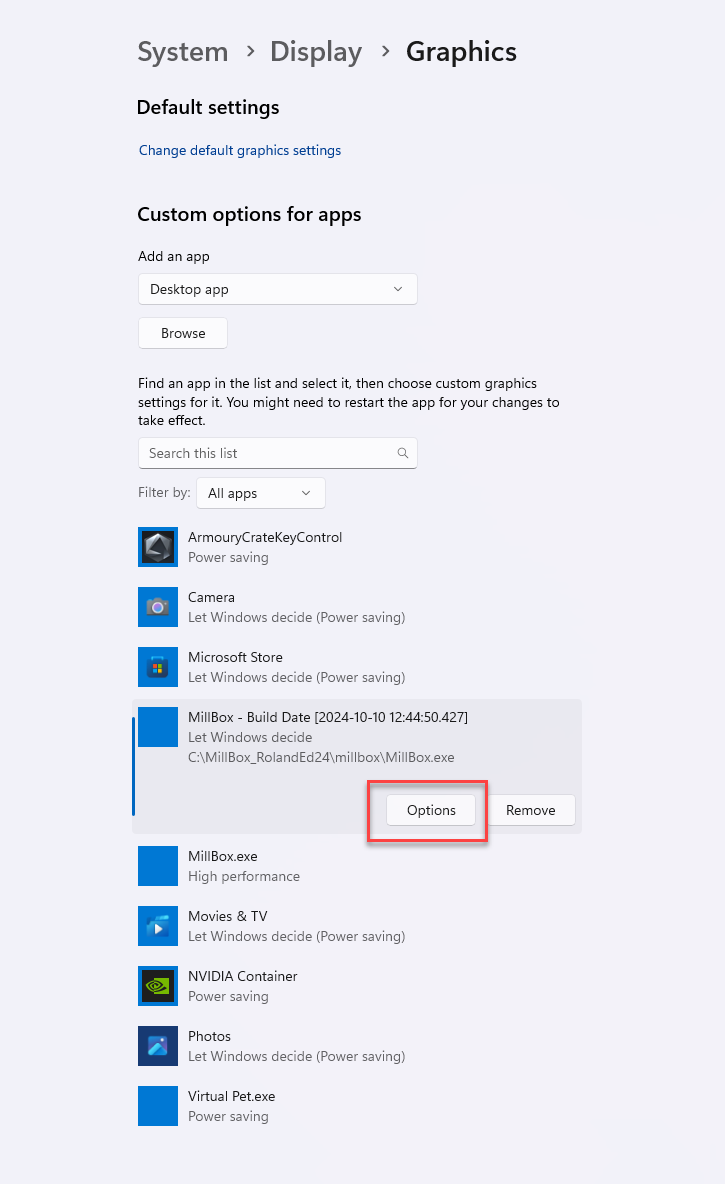
Figure 3. Graphics settings with MillBox listed and the Options button.
3. Choose High performance
Select High performance (your discrete GPU) → Save.
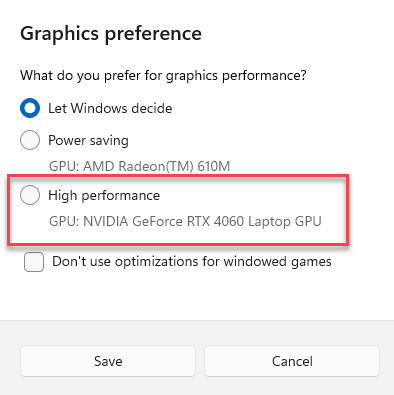
Figure 4. Graphics preference set to High performance.
4. Restart MillBox
Close MillBox and open it again. The icons should now display.
If icons are still missing
Update your GPU driver from NVIDIA, AMD, or Intel
Reboot the PC to clear cached graphics state
If you have more than one MillBox entry in Graphics settings, make sure the one you set to High performance points to the exact MillBox.exe you run
Quick checklist
MillBox.exe added to Windows Graphics settings
Graphics preference set to High performance
GPU driver current
MillBox restarted
Need Further Help?
Need help locating the install path or picking the right GPU entry? Email support@levelupcadcam.com and include a screenshot of your Graphics settings.
Was this article helpful?
That’s Great!
Thank you for your feedback
Sorry! We couldn't be helpful
Thank you for your feedback
Feedback sent
We appreciate your effort and will try to fix the article