Security tools can block or slow CAM calculations, file writes, and dongle checks. If you see unusual errors in MillBox or SUM3D, first try temporarily disabling third-party antivirus on the CAM station only. If that is not possible, add the exclusions below.
Tip: After adding exclusions, restart the PC so the changes apply.
What to exclude
Processes
Add these executables to your AV/EDR allowlist.
MILLBOX.EXE
CAMWIN.EXE and CAMWINC.EXE (SUM3D / Strategy Editor components)
File types
Allow read/write for:
.CAM, .TMP, .MBP
Folders
Exclude the MillBox install, working, and output locations. Examples:
Install folder
C:\MillBox_RolandEd24\millbox\
(Your folder name may differ by edition or year, for exampleMillBox_*23*, MillBox_*24*.)Projects / Jobs
Your custom projects path, e.g.C:\Users\<you>\MillBox Projects\CNC Output
Your configured CNC output path, e.g.C:\MillBox_RolandEd24\CNC\Temp / Cache
Any MillBox temp path you configured in PreferencesReplace / Libraries (if stored outside the install folder)
e.g.C:\REPLACE\ or your network location
Note: If you use a network share for projects or CNC output, add server-side exclusions for those UNC paths too.
How to add exclusions in Windows Security
Open Windows Security
Virus & threat protection → Manage settings
Scroll to Exclusions → Add or remove exclusions
Add each Folder, File, and File type listed above
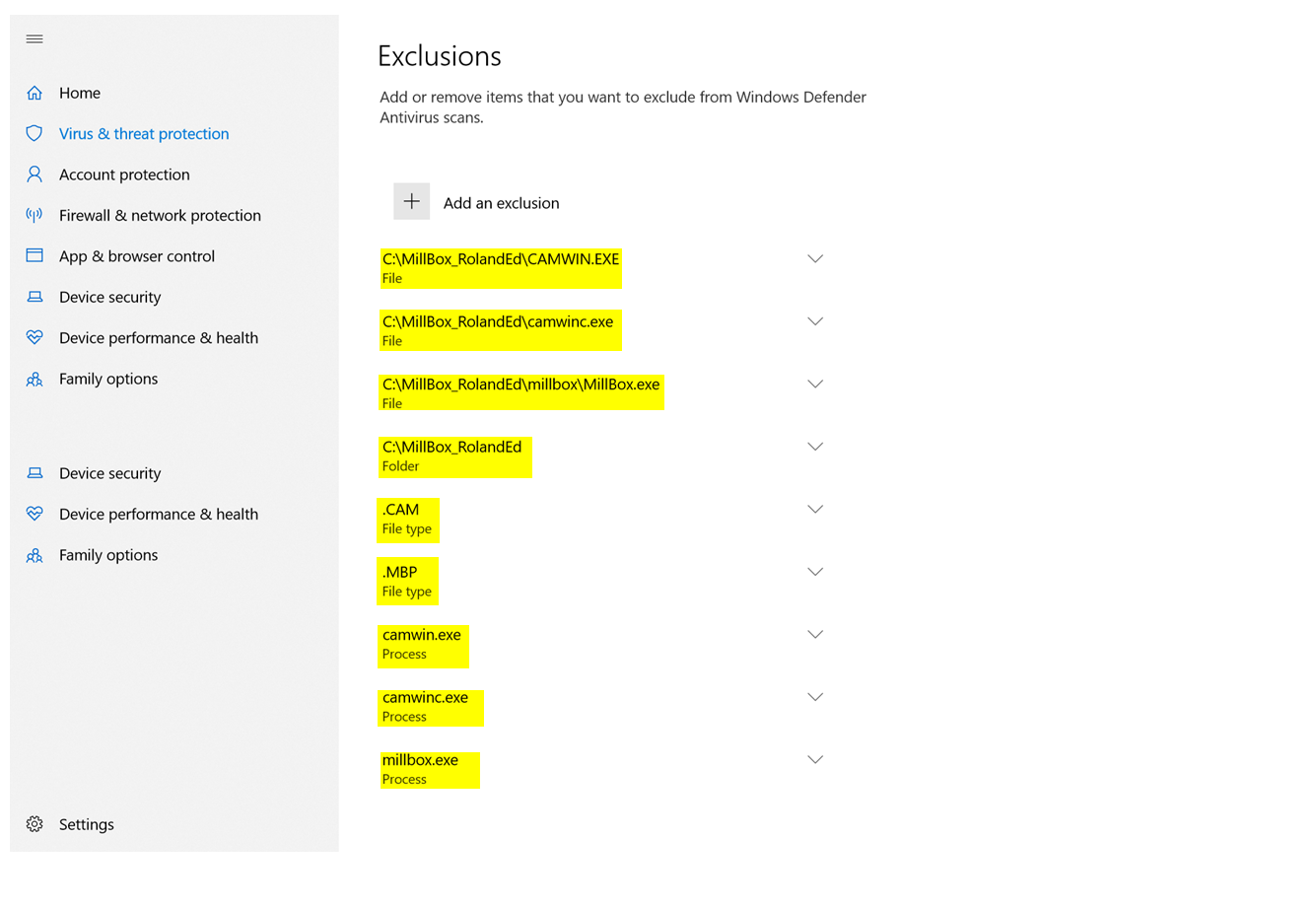
Figure 1. Windows Security exclusions for MillBox (apps, folder, .CAM/.MBP).
Third-party antivirus or endpoint protection
Create allow rules for the processes and folders above
Turn off real-time scanning of CNC output and temp folders if your tool allows per-path control
Exclude USB dongle drivers if your product flags them
Verify after changes
Launch MillBox and open a typical job
Run a short calculation and confirm no new warnings appear
Check that files are created in your CNC output folder instantly
If Strategy Editor is licensed, open SUM3D and save a test strategy
Quick checklist
Processes allowed: MILLBOX.EXE, CAMWIN.EXE, CAMWINC.EXE
File types allowed: .CAM, .TMP, .MBP
Install, Projects, CNC output, Temp, and Library folders excluded
PC restarted after exclusions
Network share exclusions added if used
Need Further Help?
Need a prebuilt exclusion list tailored to your exact paths? Email support@levelupcadcam.com with screenshots of your Preferences → General Settings paths and we will prepare one for your IT team.
Was this article helpful?
That’s Great!
Thank you for your feedback
Sorry! We couldn't be helpful
Thank you for your feedback
Feedback sent
We appreciate your effort and will try to fix the article