You may sometimes see a Microsoft Visual C++ Debug Library pop-up while working in MillBox. It usually means a system component or background process interrupted MillBox.
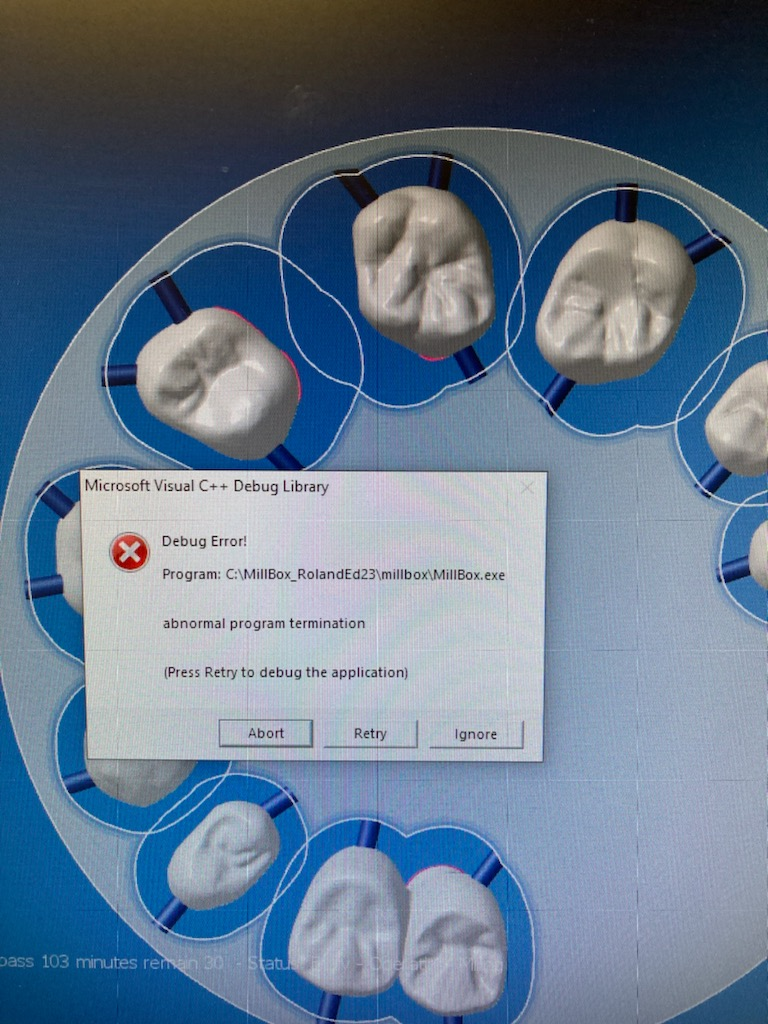
Figure 1. Example of the Visual C++ Debug error pop-up while nesting in MillBox.
Quick fix
Install pending Windows Updates
Settings → Windows Update → Check for updates → Install → Restart the PC.Reopen MillBox and try the same action again.
If the error returns, work through the steps below in order.
Step-by-step fixes
1) Graphics driver
Update the GPU driver from your vendor (NVIDIA, AMD, Intel).
Choose Clean install if offered.
Restart the PC.
2) Visual C++ and .NET runtimes
Install the latest Microsoft Visual C++ Redistributable (both x64 and x86, 2015–2022).
Install the current .NET Desktop Runtime.
Restart and test.
3) Reboot cadence
Check uptime. If the workstation has been on for days, do a full restart to clear memory and driver state.
4) Security software
Temporarily disable third-party antivirus or endpoint protection and test.
If the error disappears, add exclusions for your MillBox install and working folders:
C:\MillBox_* or your MillBox install path
Project, temp and CNC output folders
5) Run as Administrator
Right-click the MillBox shortcut → Run as administrator.
If this resolves it, update the shortcut to always run as admin.
6) Dedicated GPU and power plan
Force MillBox to use the high-performance GPU in Windows Graphics settings.
Set Windows Power plan to High performance.
Reboot and test.
7) Repair or reinstall MillBox
Back up custom strategies and libraries.
Run the MillBox Repair tool or reinstall the same build.
Verify the dongle and licenses are detected.
8) System file check
Open Command Prompt as admin and run:
sfc /scannow
After it completes, run:
DISM /Online /Cleanup-Image /RestoreHealthRestart and test MillBox.
Optional checks
Close screen recorders, GPU overlays and capture tools during calculation.
Ensure disk space is healthy on the drive that holds your CNC output.
Turn off USB selective suspend if dongles disconnect during use.
When to escalate
If the error persists after the steps above, send the following to support@levelupcadcam.com:
Screenshot of the error and what you were doing when it appeared
Your MillBox build number (Help → About)
Windows version and GPU model/driver version
MillBox logs from your job session, if available
Any recent hardware, driver or Windows changes
Quick checklist
Windows fully updated and PC restarted
GPU driver updated and clean install completed
Visual C++ and .NET runtimes installed
Security software exclusions set for MillBox folders
MillBox tested as Administrator
High-performance GPU and power plan enabled
Repair or reinstall attempted
SFC and DISM completed without errors
Need Further Help?
Need hands-on help applying these steps or grabbing logs? Email support@levelupcadcam.com and we will walk you through it.
Was this article helpful?
That’s Great!
Thank you for your feedback
Sorry! We couldn't be helpful
Thank you for your feedback
Feedback sent
We appreciate your effort and will try to fix the article