When MillBox stalls during toolpath generation, it usually traces back to setup, storage, hardware, or software versioning. Use this guide to quickly diagnose, fix, and prevent calculation freezes.
Start Here: Quick Diagnosis
A. Confirm the case setup
Open the job and verify the Object Type matches the restoration (see the reference images in Figures 1–6 below).
If unsure, reselect the correct type and regenerate toolpaths.
B. Check available disk space
Verify free space on the drive where your CNC output folder writes.
If space is low, enable MillBox archiving and clear old files (Figure 7).
C. Verify workstation capacity
Heavy cases (multi-unit bridges, hybrids, dense strategies) need adequate CPU/RAM/GPU. See recommended specs and example build (Figure 9).
D. Confirm your MillBox version
Update to the latest stable MillBox build to benefit from performance fixes and strategy updates.
Object Type: The #1 Cause of Freezing
MillBox’s strategies depend on the Object Type you select. A mismatch can create invalid or excessively complex paths and stall calculations.
Common Object Types (reference set)
Full Contour Crown
A crown with a full anatomical design that covers all five surfaces of a tooth. It is crafted entirely from the chosen material, offering aesthetic and functional benefits.
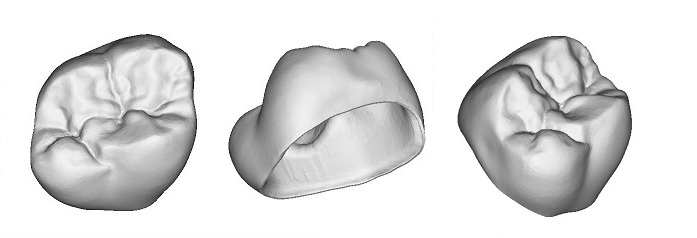
Figure 1. Full Contour Crown
Hybrid Anatomic Crown / Screw Retained Crown
Combines a titanium section (implant interface) with a ceramic exterior. It includes a screw channel but lacks a screw seat.
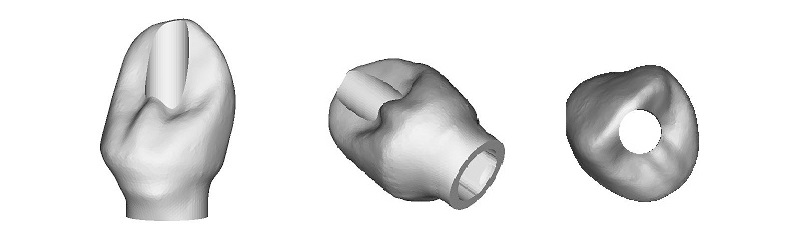
Figure 2. Hybrid Anatomic Crown / Screw-Retained Crown
Anatomic Abutment
Similar to a Hybrid Crown but includes an implant interface and screw seat.
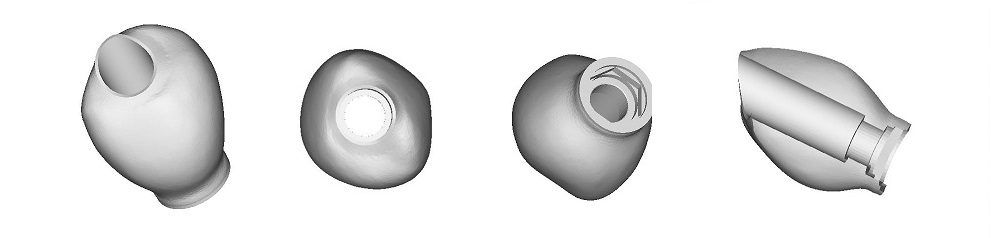
Figure 3. Anatomic Abutment
Full Contour Bridge
A bridge designed to replace one or more missing teeth, complete with detailed occlusal features.
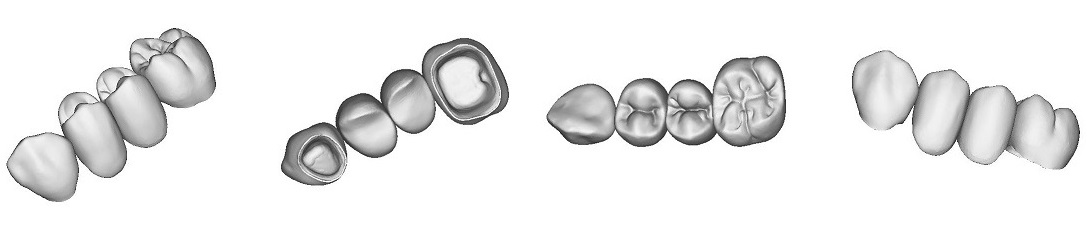
Figure 4. Full Contour Bridge
Hybrid Bridge
Similar in design to a Hybrid Crown but configured as a bridge.
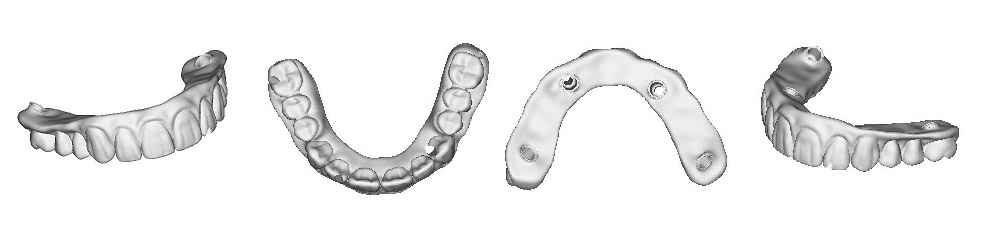
Figure 5. Hybrid Bridge
Anatomic Abutment Bridge
Like an Anatomic Abutment but designed for bridge restorations.
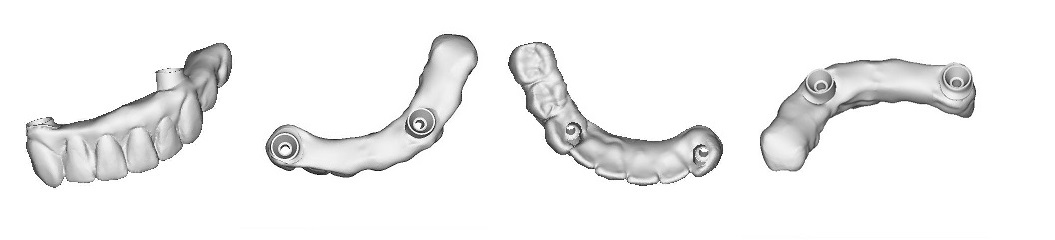
Figure 6. Anatomic Abutment Bridge
Fix in seconds
Reopen the case → Object Type menu.
Select the correct restoration.
Save and recalculate toolpaths.
If still slow, reduce non-critical add-ons (e.g., unneeded auxiliary strategies) and retry.
Storage: Low Disk Space = Slow or Stalled
MillBox writes large CNC files during calculation. If your CNC output drive is full or fragmented, operations can freeze.
How to stabilize
Confirm free space on the CNC output drive (aim for generous headroom, not just minimal GB).
In MillBox settings, enable automatic archiving/deletion of older output to keep the folder lean.
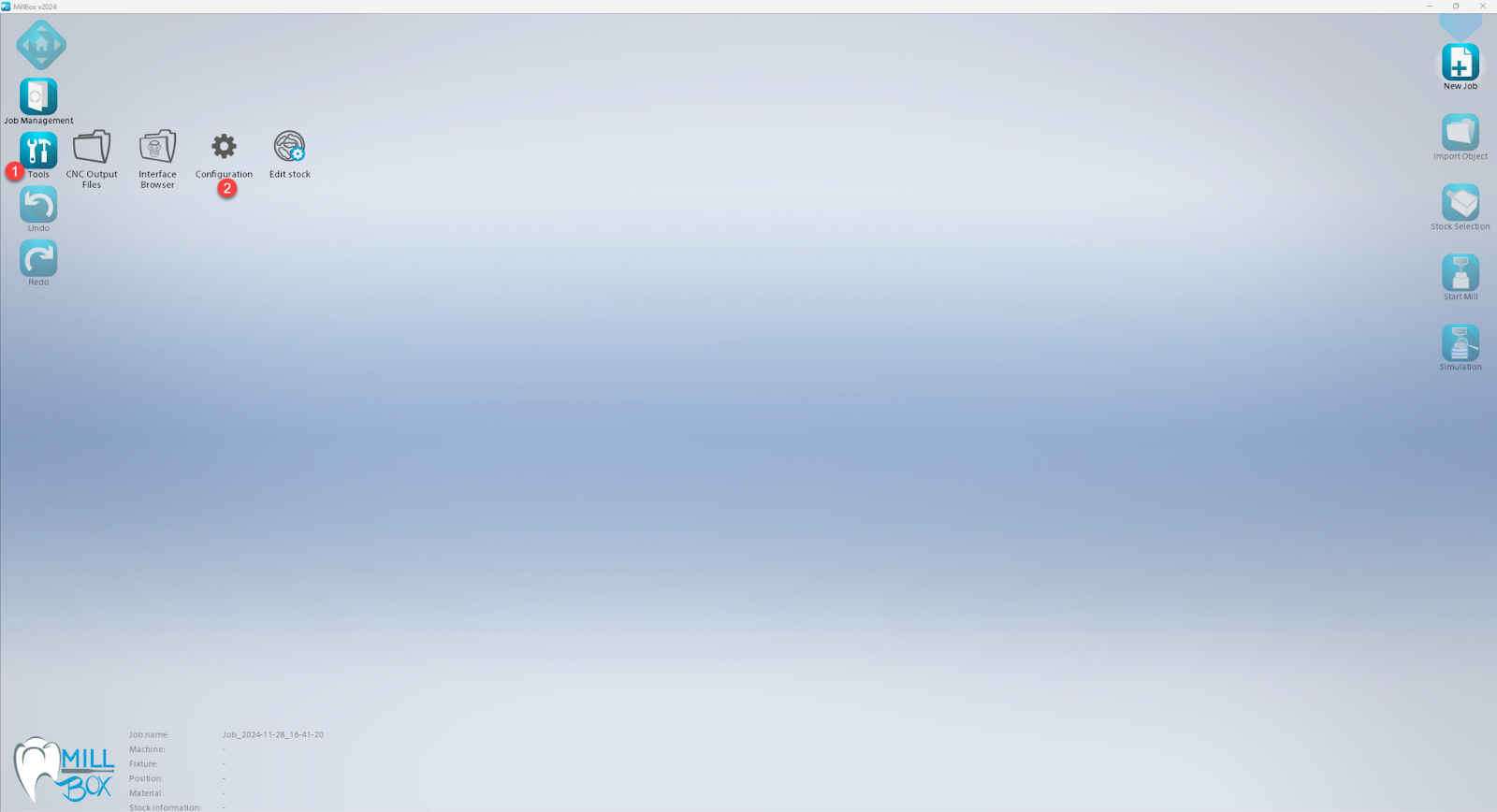
Figure 7. MillBox disk-space/archiving settings, enable automatic archiving or deletion of old outputs.
3. Move old projects to an external or secondary drive.
4. Empty Recycle Bin and clear temporary folders. (Figure 8 shows the UI area where this is managed.)
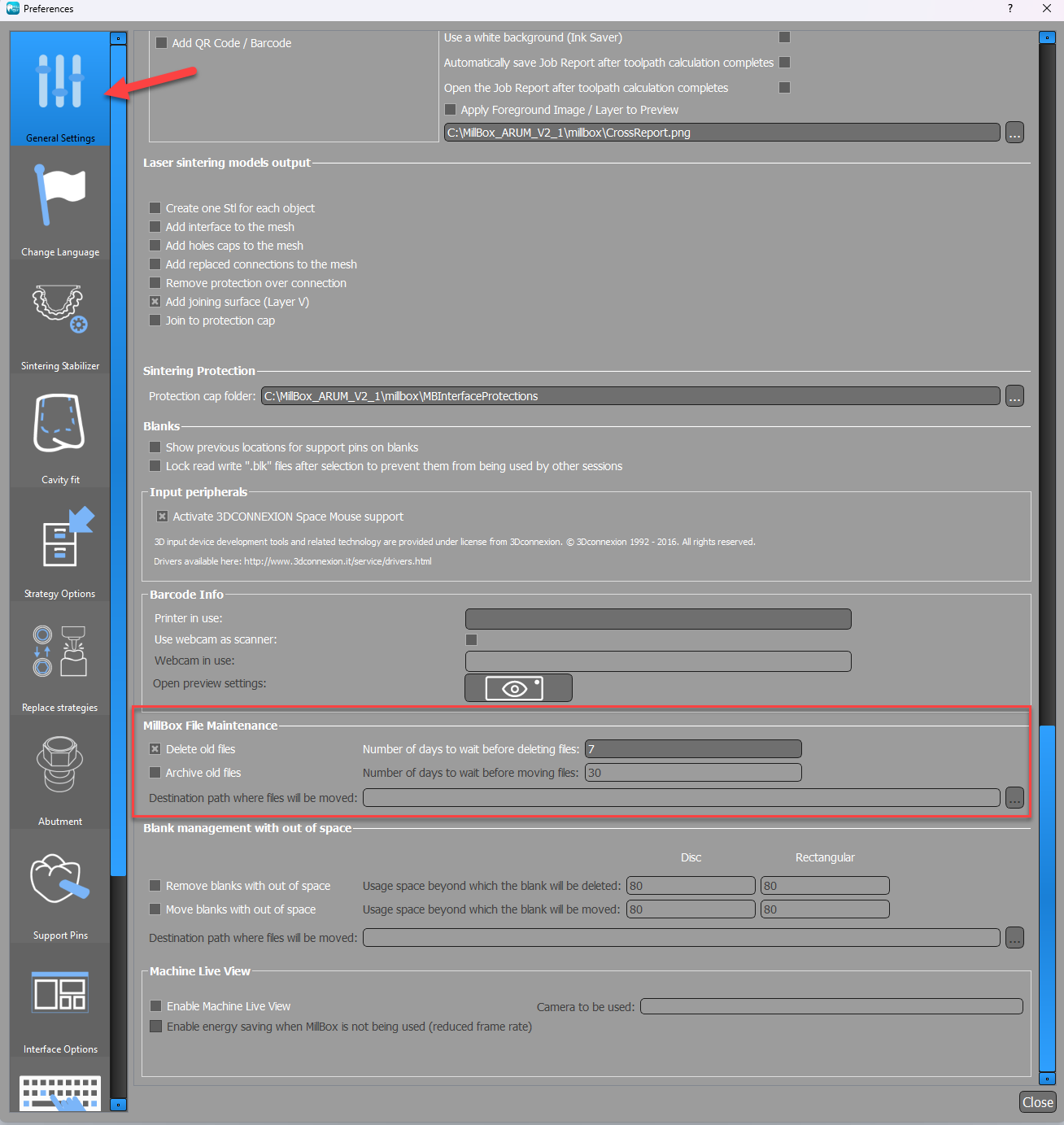
Figure 8. Example MillBox interface panels referenced for file management steps.
Hardware: Give MillBox Room to Work
Complex toolpaths are compute-intensive. Even if MillBox “runs” on minimum specs, older or under-powered systems can hang during heavy jobs.
Baseline that works reliably
CPU: Modern multi-core (high single-thread performance matters for many CAM ops)
RAM: 32 GB+ for multi-unit/hybrid workflows
GPU: Current-gen workstation or gaming-class GPU with stable drivers
Storage: NVMe SSD for projects and output; keep at least 25–30% free
Level Up option
Our custom performance workstations routinely deliver 25–40% faster MillBox calculation times vs. general office PCs.
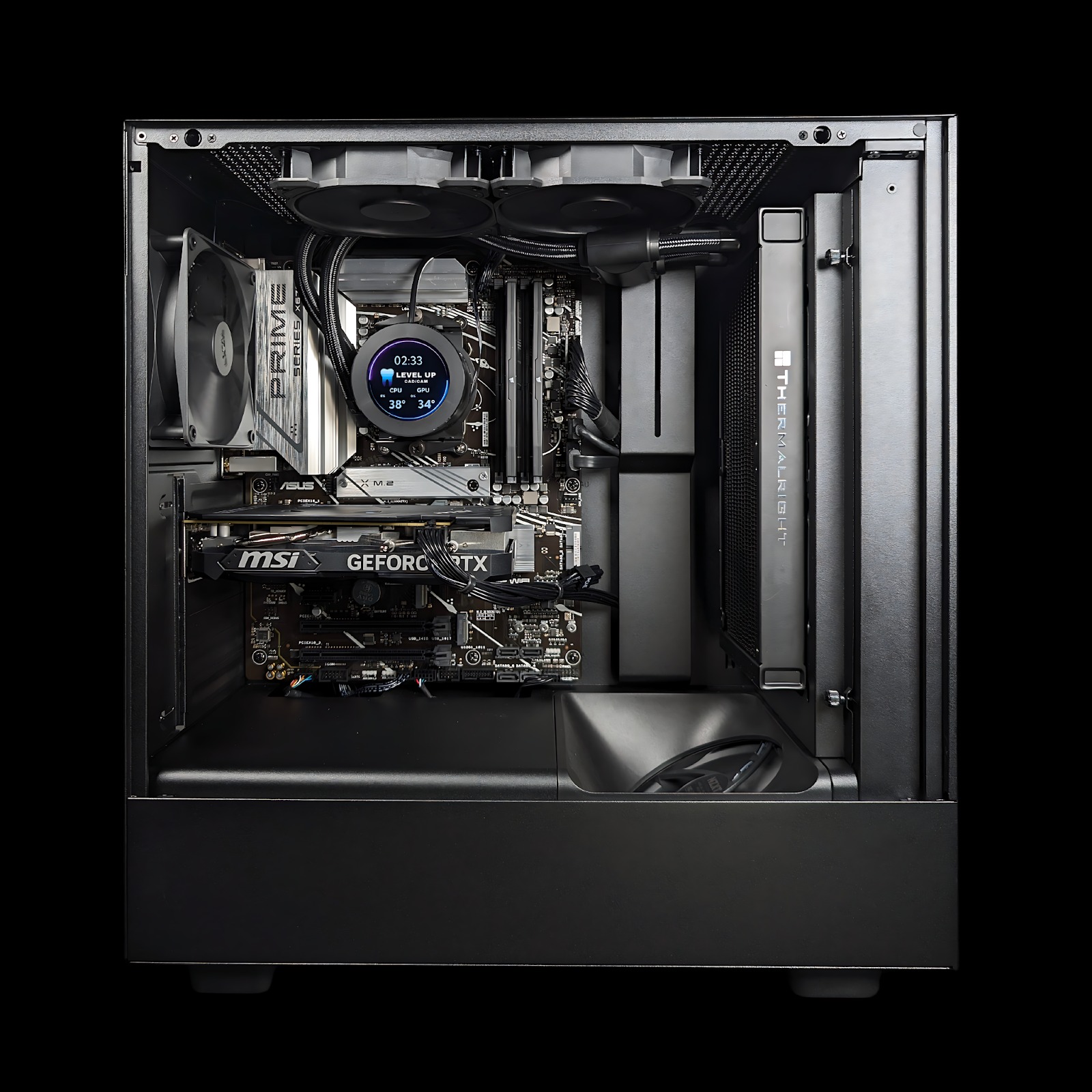
Figure 9. High-performance CAM workstation example build optimized for MillBox calculations.
Need specs or a quote? support@levelupcadcam.com
Software Version: Stay on the Stable Build
Each CIMsystem release includes strategy and performance improvements. Outdated builds may freeze in cases the current version finishes cleanly.
Best practice
Install the latest stable version (not necessarily the newest beta).
Verify strategy packs were applied during install.
Document your build number (Help → About) for support.
If It Still Freezes
Try these targeted remedies in order:
Isolate the cause: Duplicate the job and sequentially disable add-ons (e.g., over-thick connectors, unneeded supports, hyper-fine finishing). Recalculate to find the setting creating the stall.
Reduce complexity:
Lower non-critical resolution on preview steps (not final output).
Simplify connectors where possible.
Split very large bridges into staged runs if clinically acceptable.
Close background apps: Free up RAM/CPU/GPU.
Clean your output path: Archive old jobs; avoid network latency on NAS during active calculation.
Reinstall/repair MillBox: If behavior started after a crash or OS update, a clean reinstall with the latest stable build often resolves persistent freezes.
Escalate with logs: Export MillBox logs, note your build number, attach the case file, and contact Level Up Support.
Final Checklist
Object Type matches the restoration (Figures 1–6).
CNC output drive has ample free space; auto archive is enabled (Figure 7).
Workstation meets or exceeds recommended specs (Figure 9).
Latest stable MillBox build installed; strategies up to date.
Case recalculated after simplifying any non-essential strategies.
Logs and build number ready for support.
Need Further Help?
Still have questions? Reach out via our Support Portal or email us at support@levelupcadcam.com.
We’re here to help you Level Up.
Was this article helpful?
That’s Great!
Thank you for your feedback
Sorry! We couldn't be helpful
Thank you for your feedback
Feedback sent
We appreciate your effort and will try to fix the article